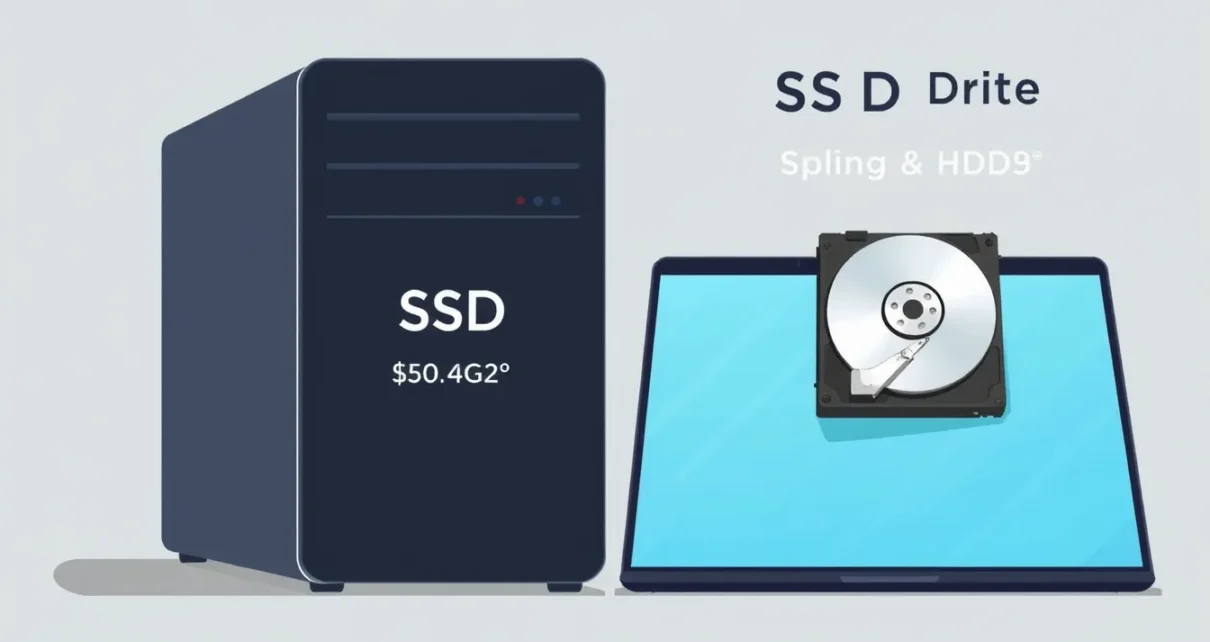
If you are upgrading a laptop or building a new desktop, choosing between an SSD and an HDD often feels like a guess. This guide clarifies the core differences without technical jargon. You will learn how each drive stores data, how that affects real-world speed, and what the price tags actually mean for your budget.
We break down the trade-offs between capacity and performance to help you make a confident decision. Whether you need fast boot times for work or affordable space for media files, you will find a clear path forward. No confusing specs, just practical answers tailored to your specific storage needs.
How SSDs and HDDs Store Data
The fundamental difference lies in how each drive stores and retrieves information. An HDD (Hard Disk Drive) uses spinning magnetic platters and a physical arm to read and write data. This mechanical movement creates latency because the arm must travel to the correct sector before data transfer begins. Consequently, mechanical wear is inevitable, making HDDs susceptible to damage from drops or shock.
In contrast, an SSD (Solid-State Drive) relies on flash memory cells. These components store data electronically using charge-based states, eliminating all moving parts. Because there is no physical delay, SSDs access data almost instantly. This architecture makes them significantly more durable and resistant to physical impact. However, flash memory cells have a limited number of write cycles, which is why metrics like TBW (Total Bytes Written) matter for long-term endurance.
These storage mechanisms directly influence performance. The lack of mechanical movement allows SSDs to excel at Random I/O tasks, where data is scattered across the drive. HDDs struggle with this, performing best only during Sequential read/write operations where large files are accessed in a continuous stream. Understanding this distinction helps explain why SSDs feel faster in daily use, even when raw throughput numbers appear similar.
Performance Differences: Speed in Real‑World Use
Real-World Speed Scenarios
While Random I/O advantages are technical, the tangible impact appears in daily tasks. Booting an operating system involves loading hundreds of small, scattered files. An SSD handles this nearly instantly because it can access all these fragments simultaneously. An HDD must physically move its read head to each location, creating a bottleneck that results in significantly longer wait times.
Application loading follows the same pattern. Opening a browser or a productivity suite requires fetching configuration files, libraries, and data from various sectors. SSDs eliminate the latency associated with mechanical seeking, making the transition from icon click to active window feel seamless. In contrast, HDDs often display noticeable delays, especially as the drive fills up and data becomes more fragmented.
File transfer performance depends on file size. For large, single files like video projects or backups, HDDs can keep pace with SATA SSDs during Sequential read/write operations. However, transferring thousands of small files, such as source code repositories or photo libraries, exposes the HDD’s weakness. The drive spends more time repositioning the head than actually reading data. NVMe SSDs, connected via PCIe lanes, further widen this gap by offering higher bandwidth and lower latency than their SATA counterparts, ensuring that even multi-gigabyte transfers complete with minimal delay. For users who prioritize responsiveness over raw throughput, the SSD’s consistent speed under mixed workloads is the decisive factor.
Cost Considerations: Price per Gigabyte and Budget Planning
Historically, HDDs dominated the market due to significantly lower manufacturing costs for high-capacity storage. This trend has shifted as SSD technology matured, narrowing the price gap, though HDDs remain the most economical option for bulk storage. When comparing drives, focus on the price per gigabyte rather than the total sticker price, as larger capacities typically offer better value per unit of storage.
To evaluate your options, divide the total cost of a drive by its capacity. For example, a smaller SSD might have a higher cost per gigabyte than a larger model of the same type. This calculation helps you determine if upgrading to a larger drive provides a meaningful savings or if sticking with your current capacity is more budget-friendly. Keep in mind that NVMe SSDs generally carry a premium over SATA SSDs due to faster performance, while HDDs offer the lowest cost per gigabyte for terabyte-scale storage.
Plan your budget by first determining your minimum required capacity for operating systems and critical applications. Then, allocate remaining funds to additional storage. If you need massive archives, a hybrid approach—using a smaller SSD for speed and a larger HDD for bulk data—often provides the best balance of performance and cost efficiency.
Capacity vs. Speed: Choosing the Right Balance
The hybrid strategy mentioned earlier relies on matching drive types to specific workload demands. You must identify where raw speed adds tangible value versus where sheer volume is the priority. This distinction prevents overspending on unnecessary performance or suffering from bottlenecks in latency-sensitive tasks.
For media libraries, photo archives, or backup repositories, capacity usually takes precedence. These files are typically accessed sequentially and rarely require rapid Random I/O. A large HDD provides ample space without the premium associated with high-performance SSDs. In these scenarios, the slower Sequential read/write speeds of an HDD are rarely noticeable during file transfers or streaming.
Conversely, gaming and professional video editing demand immediate access to data. Operating systems, active project files, and applications benefit significantly from NVMe or SATA SSDs. The reduced latency in Random I/O operations results in faster boot times, quicker application launches, and smoother asset loading. For creative professionals, the speed difference can directly impact workflow efficiency and rendering times.
To determine your optimal balance, ask these questions:
- Is the data actively being modified or streamed daily? If yes, prioritize an SSD.
- Is the data static and accessed only occasionally? If yes, an HDD is sufficient.
- Do you have a strict budget? Start with a smaller, faster SSD for the system and add an HDD for overflow storage.
This approach ensures you pay for speed only where it matters most.
Reliability, Lifespan, and Data Safety
Wear Mechanisms and Longevity
SSDs and HDDs fail differently. HDDs rely on spinning platters and moving heads, making them vulnerable to physical shock and mechanical degradation over time. SSDs have no moving parts, so they resist vibration and drops. However, flash memory cells degrade with repeated writes. Manufacturers use wear-leveling algorithms to distribute data evenly across cells, extending drive life. The Total Bytes Written (TBW) metric indicates how much data a drive can handle before warranty expiration. For typical users, TBW limits are rarely reached before other components fail.
Data Safety and Backups
Neither drive type is immune to total failure. An HDD might suffer a head crash, while an SSD can fail suddenly without warning. Always maintain backups. Use the 3-2-1 rule: keep three copies of your data on two different types of media, with one copy off-site. Do not rely on a single drive for critical information, regardless of whether it is an SSD or HDD.
Warranty Considerations
Warranty periods often align with expected lifespan. SSD warranties frequently emphasize TBW limits alongside time, such as five years or a specific write volume. HDD warranties typically cover a set number of years, assuming normal use. When comparing drives, check both the duration and the conditions. A longer warranty with low TBW restrictions offers more peace of mind for heavy workloads, while consumer HDDs often provide solid coverage for archival storage.
Making the Decision: Practical Recommendations
- Budget-focused users: Start with a small, fast NVMe drive for your operating system and applications. Pair this with a larger, affordable HDD for bulk storage like media files and backups. This hybrid approach maximizes responsiveness without overspending on high-capacity solid-state storage.
- Performance-focused professionals: Prioritize low-latency Random I/O and high Sequential write speeds. Use NVMe drives for active project files, scratch disks, and frequently accessed databases. Reserve HDDs for long-term archival or cold data that requires frequent access but not real-time performance.
- Storage-heavy users: If capacity is the primary constraint, large-capacity HDDs offer the most cost-effective solution for terabytes of data. Supplement this with a modest SSD to handle system tasks, ensuring daily workflow remains snappy while keeping large libraries on mechanical media.
Assess your actual workflow before buying. If you edit video or compile code, the speed difference in Random I/O will save hours over time. If you primarily store documents and photos, the capacity-per-dollar advantage of HDDs makes them the sensible choice. Balance your budget by allocating funds for speed where it matters most and capacity where it does not. This targeted strategy ensures you get the right performance profile without paying for unnecessary features.